Go to Schematic window -> Tools -> Simulation ->
Verilog-XL to run simulation in Schematic Editing Window.
You will get the following window.
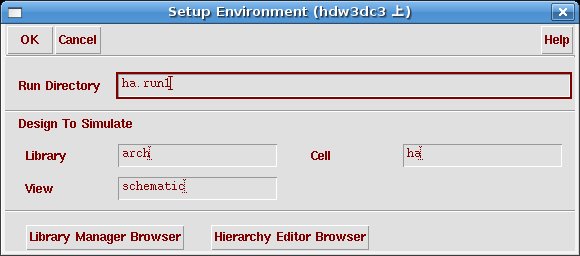
Clicking OK you will get the following Schematic Composer Analysis Environment for Verilog-XL Integration window. (Verilog window)
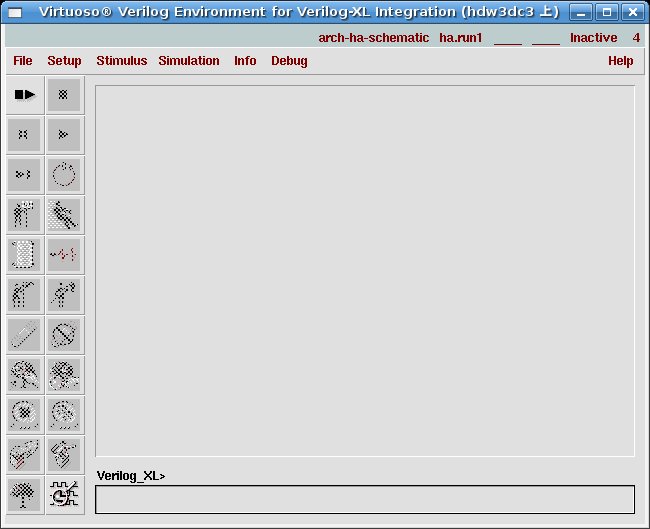
Go to Stimulus -> Verilog... in Verilog window. You will get the following window.
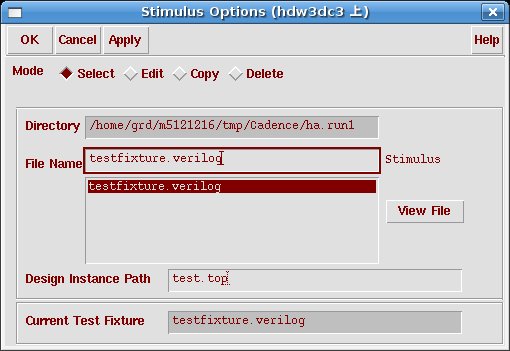
At first, check Copy and select testfixture.verilog file, then click OK.
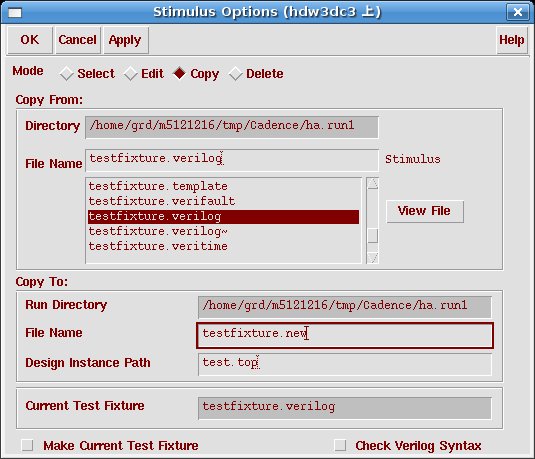
Check Edit and select testfixture.new file, then click OK.
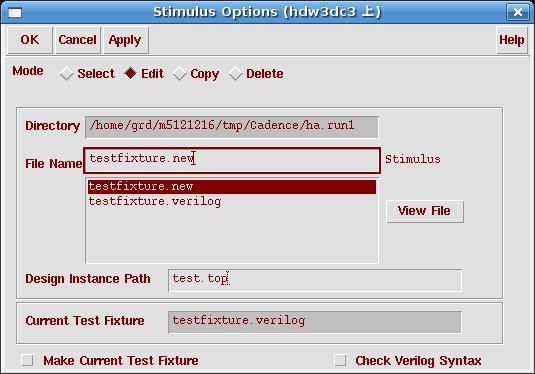
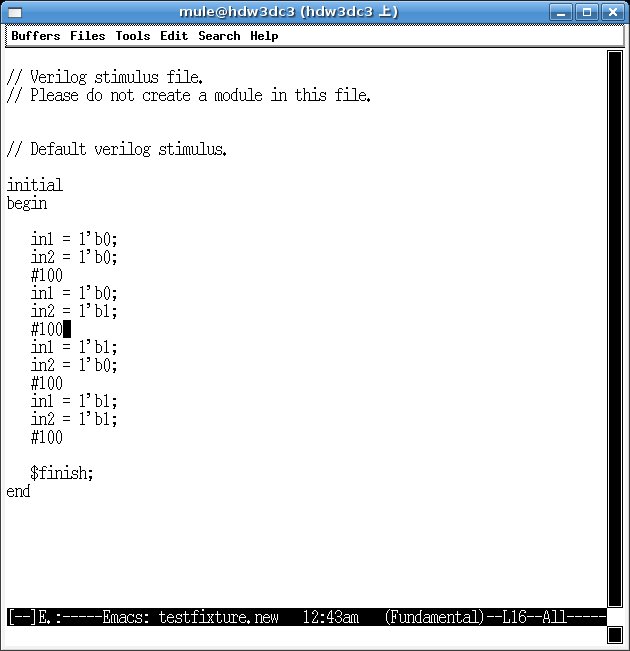
You can edit your testfixture.new file. Write your testbench to testfixture.new for simulation.
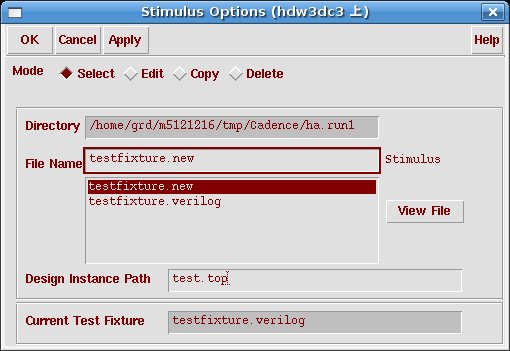
Check Select and select your testfixture.new file, then click OK.
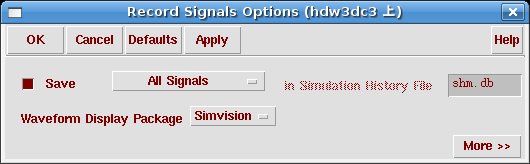
Go to Setup -> Record Signals and select All Signals to simulate all wires and gates, then click OK.
Click the following icon to start interactive.

Then, Verilog window is getting ready for simulation.
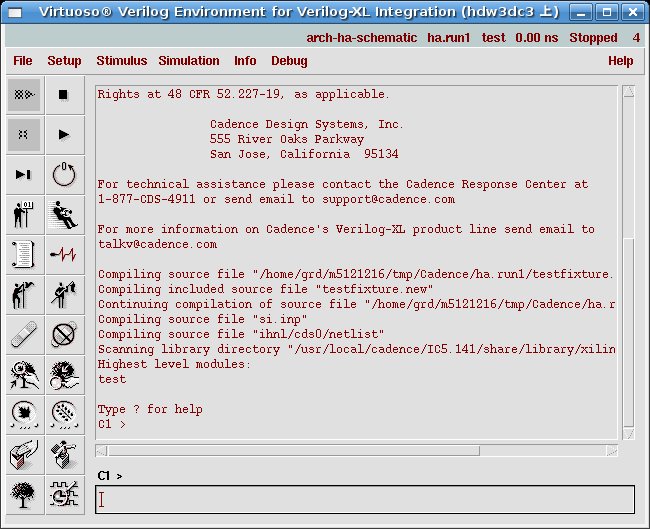
Click the following icon to begin simulation.

Simulation is finished.
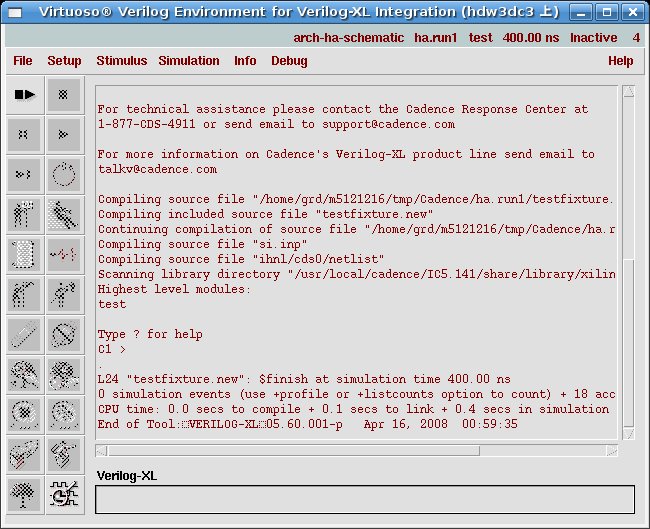
You can use simvision to view simulation result as waveform. Click the following icon to launch simvision.
